


ShadowCalc 2.0
ShadowCalc 2.0
✔ Switches to Safe Mode Instantly
✔ Stores Notes, Videos & Music Quietly
✔ Designed for Fast Problem-Solving
Bundle & Save here
Couldn't load pickup availability
Get it between - and -.

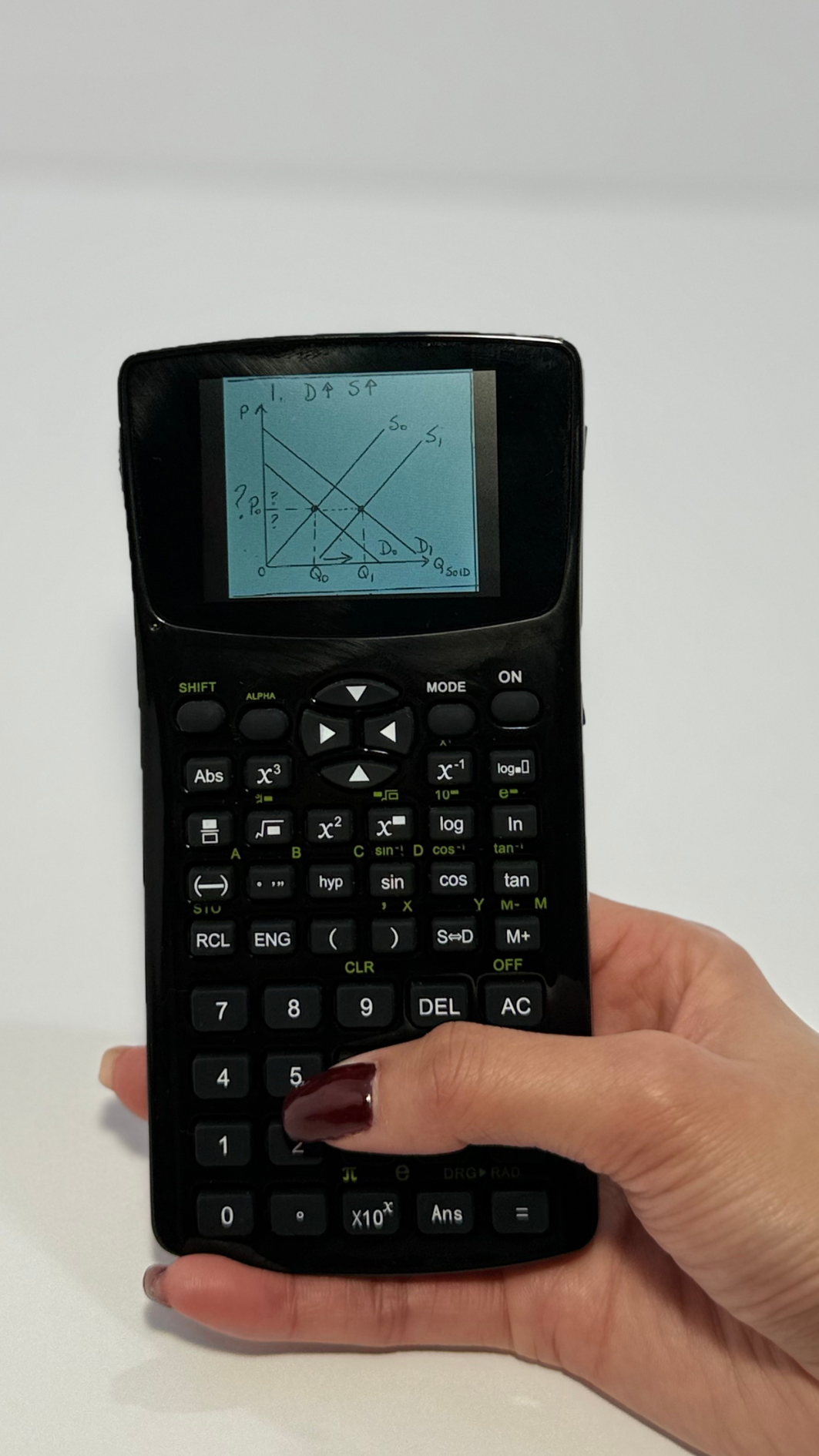
It works great! I also have a 32 GB SD card for it. I store videos and some music MP3 recordings as well. I'm loving it! Great resolution! I may even store small movies or Video episodes of some my favorite shows into the calculator!


Collapsible content
What if someone checks my calculator during an exam?
ShadowCalc™ 2.0 includes a built-in Instant Safe Mode.
If you press the “=” button, the device immediately switches into a standard calculator layout — hiding all extra tools and returning to normal operation.
This makes the device look and function just like a regular calculator whenever you need it to.
Can It Do More Than Calculate?
Yes! ShadowCalc™ 2.0 is far more than a regular calculator. It can solve math problems step-by-step, store notes, save images, play videos & music, and even record audio for later review. Perfect for students who need speed, accuracy, and all-in-one study support.
14-Day Money Back Guarantee
Your purchase is risk-free. Try ShadowCalc™ 2.0 for 14 days, and if it doesn’t impress you, simply return it for a full refund.

Smart Access That Prevents Accidental Opening
To keep things organized and private, ShadowCalc™ only opens the extended menu when you press and hold the 9 key for 5 seconds. A quick tap won’t activate anything only a long hold brings you into the advanced section.
SEE IT IN ACTION!
How to Add Files to Your ShadowCalc ?

1. Plug ShadowCalc into Your Mac or Windows
Use the USB cable included in the box. When the menu appears, select Power & Data (not Charge Only or Charge & Play).
This step is required — ShadowCalc™ won’t show up on your computer otherwise.
After selecting it, your computer will detect the device and a folder named RTL will pop up.
If it doesn’t, open Finder (Mac) or File Explorer (Windows) and look for RTL.Click RTL to access your ShadowCalc storage.

Inside the storage folder, you can add:
- Text notes
- Screenshots
- Music files
- Videos or lecture clips
- Pictures of assignments or formulas
Just select the files from your laptop that you want to move to your ShadowCalc™.

Drag & drop your files into the folder
Simply drag the files into the device’s folder they will transfer instantly.
No apps, no software, and no Wi-Fi needed.
Once the files finish copying, safely eject the device and they will appear inside your ShadowCalc™ ready to use.

Share your experience
leave us a review your feedback helps us keep improving.
QUESTIONS?
We Got Answers
Does ShadowCalc™ have an Instant-Safe Mode?
Yes. Pressing the “=” (equal) button instantly switches ShadowCalc™ into normal calculator mode.
How long does the battery last?
ShadowCalc™ is built for long study sessions.
You can expect 9–11 hours of mixed usage depending on brightness and apps.
It charges fully in about 1 hour with the included USB cable.
Is ShadowCalc™ allowed in exam rooms?
ShadowCalc™ looks and behaves exactly like a regular scientific calculator when Instant-Safe Mode is activated.
But once you enter your private access code and use the key combination, the device instantly switches back to your full Notes & Media Mode, giving you access to notes, videos, screenshots, formulas, and saved files.
How do I access the Secret Menu?
ShadowCalc™ keeps all tools, files, and apps hidden behind a private entry method for your safety.
To access the secret menu:
✔ Hold button “9” for 5 seconds
✔ Enter your access code
✔ The hidden interface appears with videos, notes, images, ebooks, and apps
If you tap 9 normally, nothing happens — it stays a regular calculator.
Only the long-press unlocks the hidden features.